How to connect WooCommerce to Alter Product

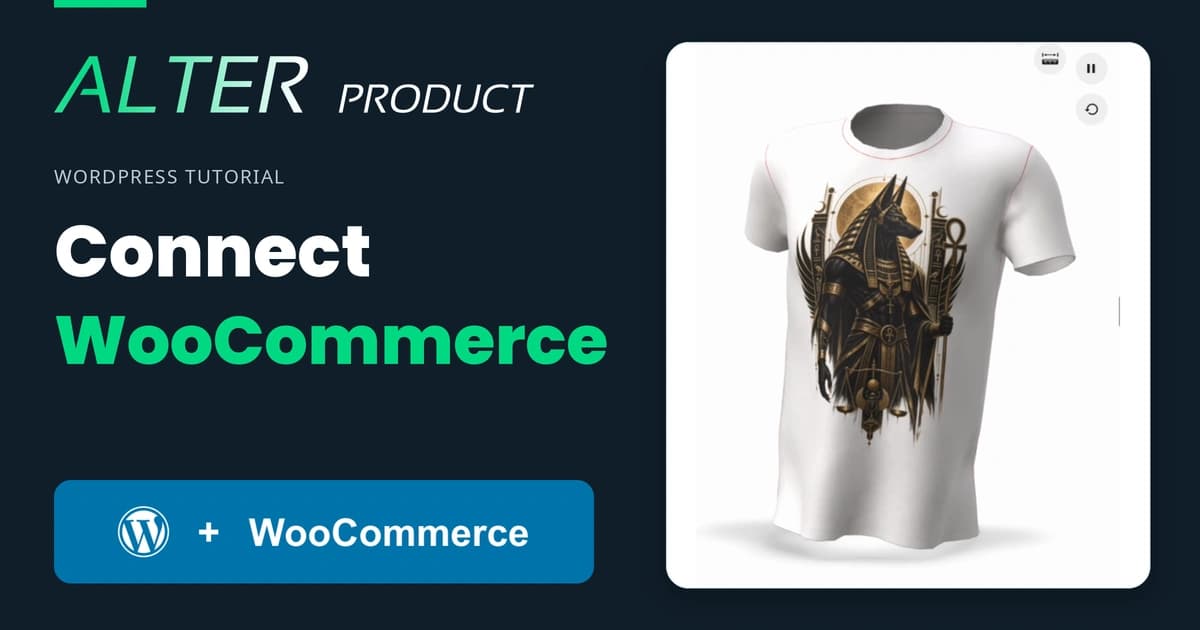
Want customers to personalize products on your WooCommerce site? Start by connecting your store to Alter Product. This guide covers the plugin installation, account connection and starter setup, then shows what to do with your first product.
Before you start
- A WordPress site with WooCommerce installed and active.
- Administrator access to WordPress and an Alter Product account.
- A working HTTPS address for your store.
In WordPress, open Settings → Permalinks, choose a structure other than Plain and save. Website embedding and usage limits depend on your Alter Product plan. Check the current plans before setting up a live store.
Watch the walkthrough
The tutorial follows the same setup, then continues through product variations, mockups and the customer-facing Customizer. Watch it on YouTube or follow the steps below.
1. Install and activate the plugin
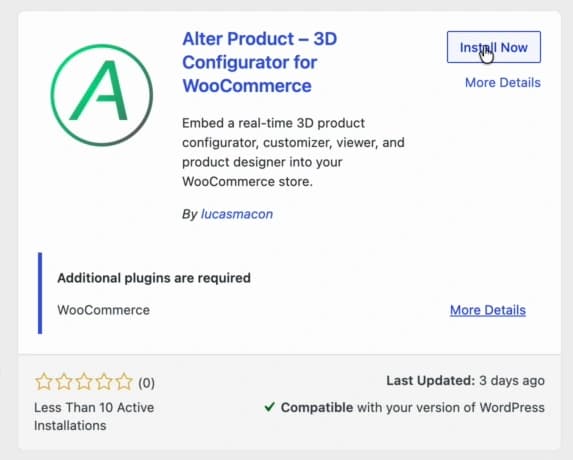
In the WordPress dashboard, open Plugins → Add Plugin and search for Alter Product. Find Alter Product - 3D Configurator for WooCommerce, click Install Now, then Activate.
The screenshots use the English interface; the menu labels may differ if your dashboard uses another language.
2. Start the account connection
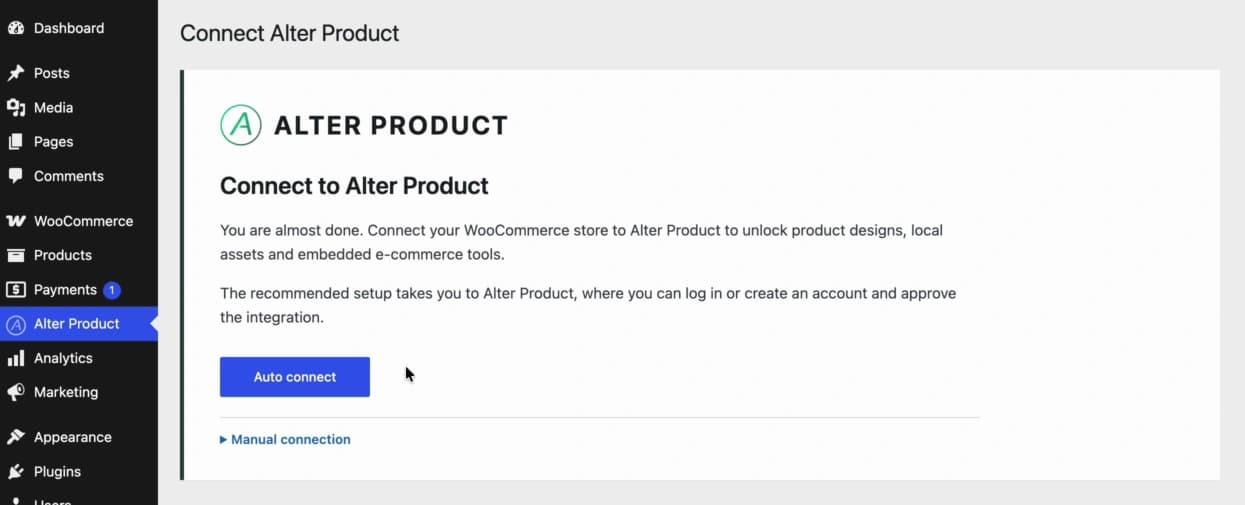
Open Alter Product in the WordPress menu. On the connection screen, choose Auto connect. This opens Alter Product so you can connect the store to your account.
3. Sign in and approve your store
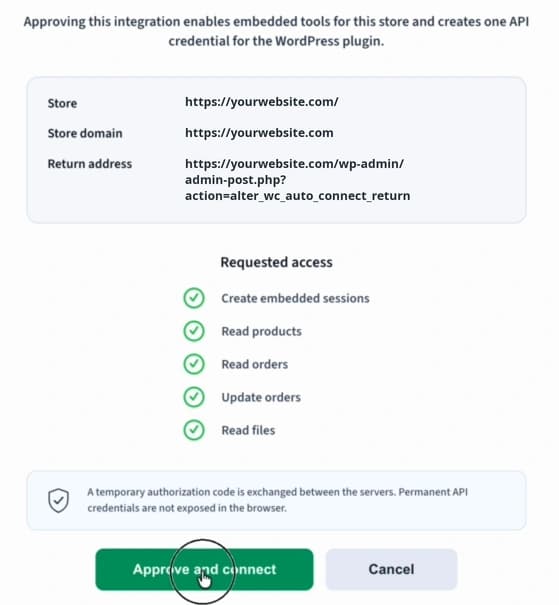
Sign in to Alter Product. On the approval screen, check that the store address is yours, then approve the connection. You will return to WordPress. With Auto connect, you do not need to copy API credentials manually.
4. Download a starter model and finish setup
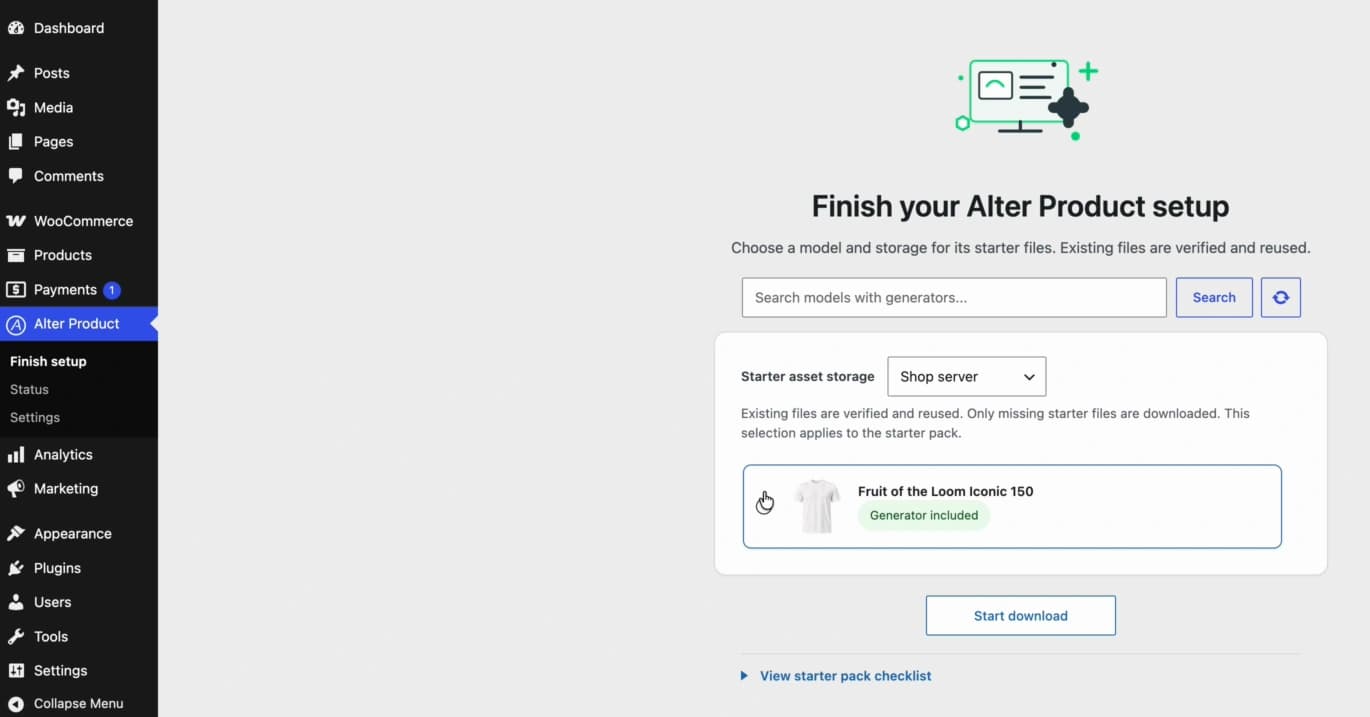
Open Alter Product → Finish setup and choose a starter model. In Starter asset storage, select where its files will be stored. Click Start download and keep the page open until it finishes, then complete the setup with Finish.
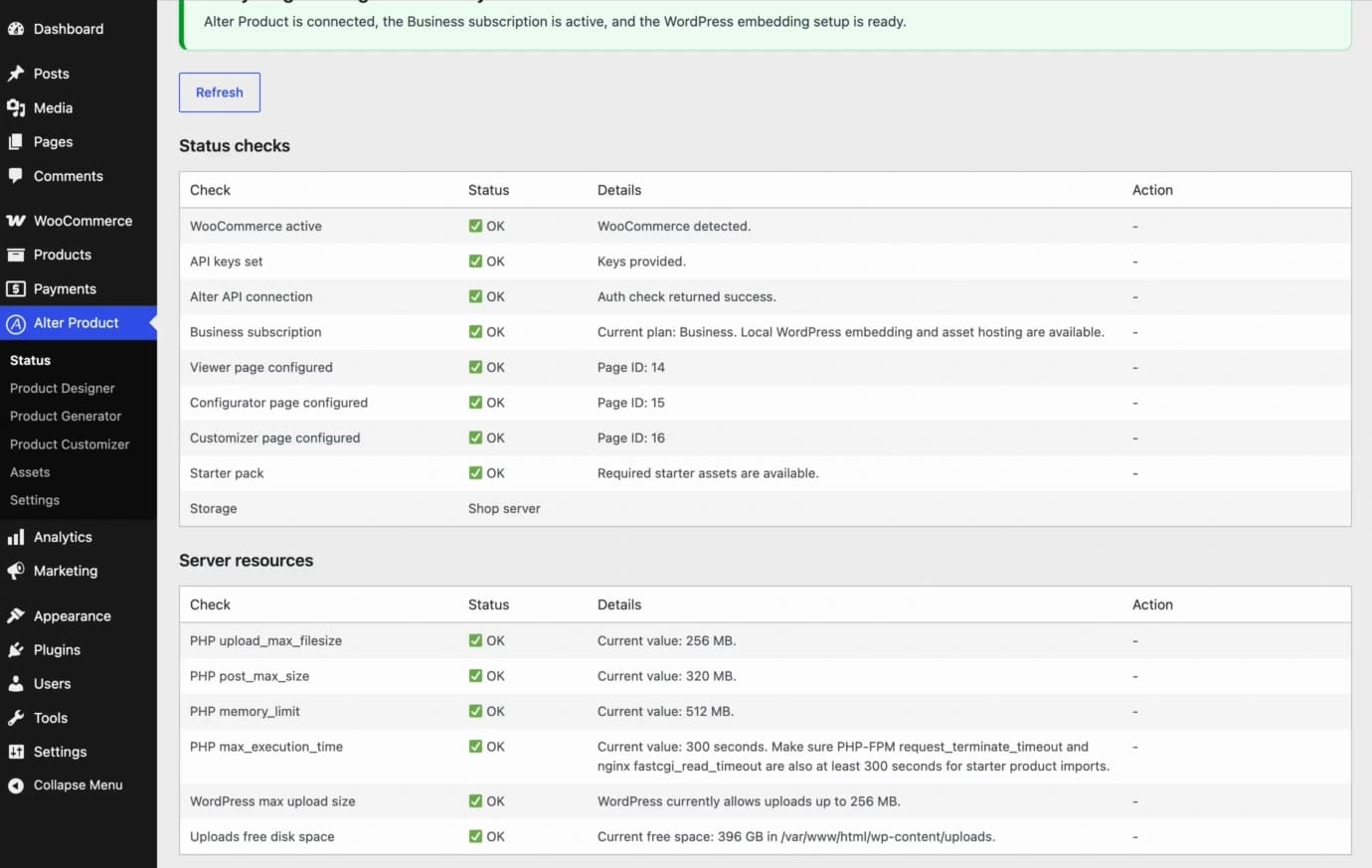
If the download fails, open Alter Product → Status and check Server resources. If a limit is too low, increase it in your hosting settings as advised on the Status page, or ask your hosting provider for help. Then return to Finish setup and click Start download again.
You now have a connected store and a model to work with. Customers will see the tools after you configure and publish a product.
5. Check the connection status
Open Alter Product → Status. Check the API connection, starter files and the server requirements listed on this page. If a check reports a problem, use its message to resolve it before continuing.
Next: try it with one product
The rest of the tutorial uses a T-shirt with color and size variations. You can follow the same example before preparing your own products.
Prepare the WooCommerce product
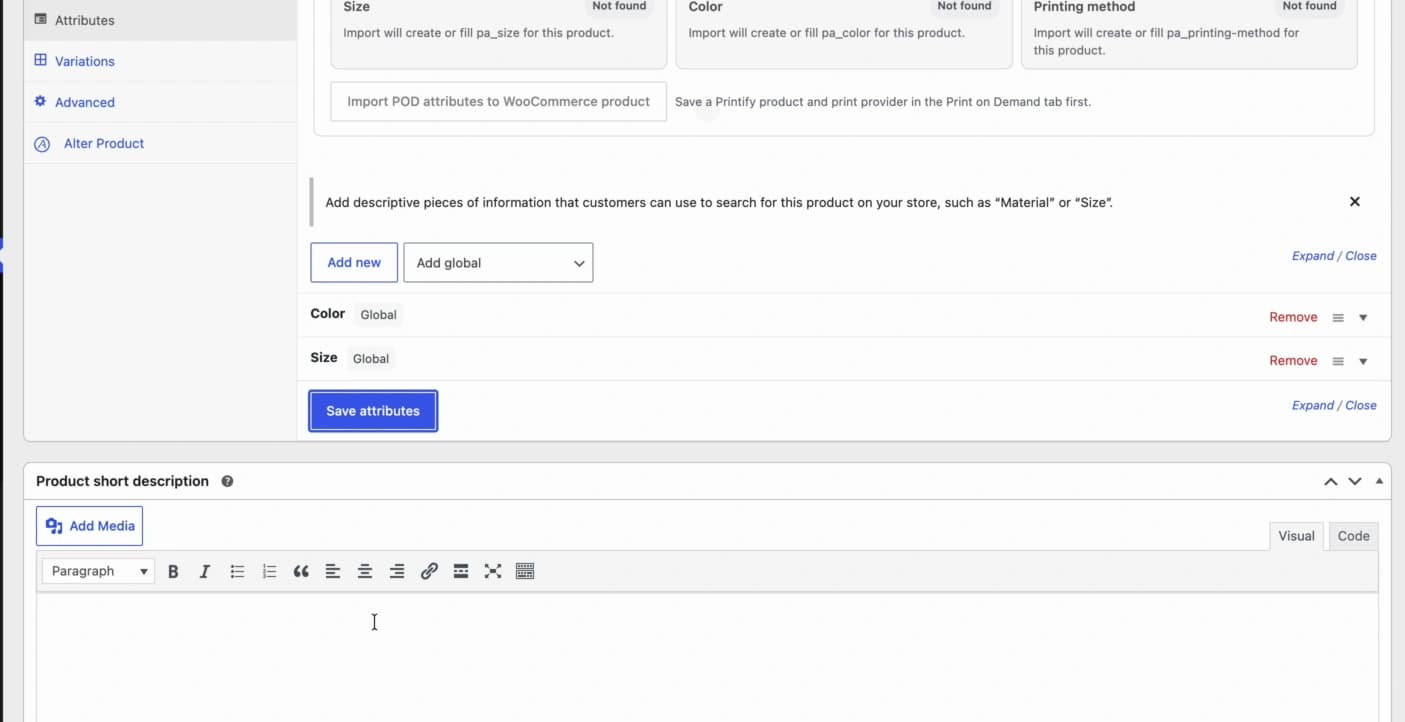
Add a product in Products → Add New. For the example shown here, choose Variable product, add color and size attributes, enable them for variations, generate the variations and set their prices.
Create and link the design
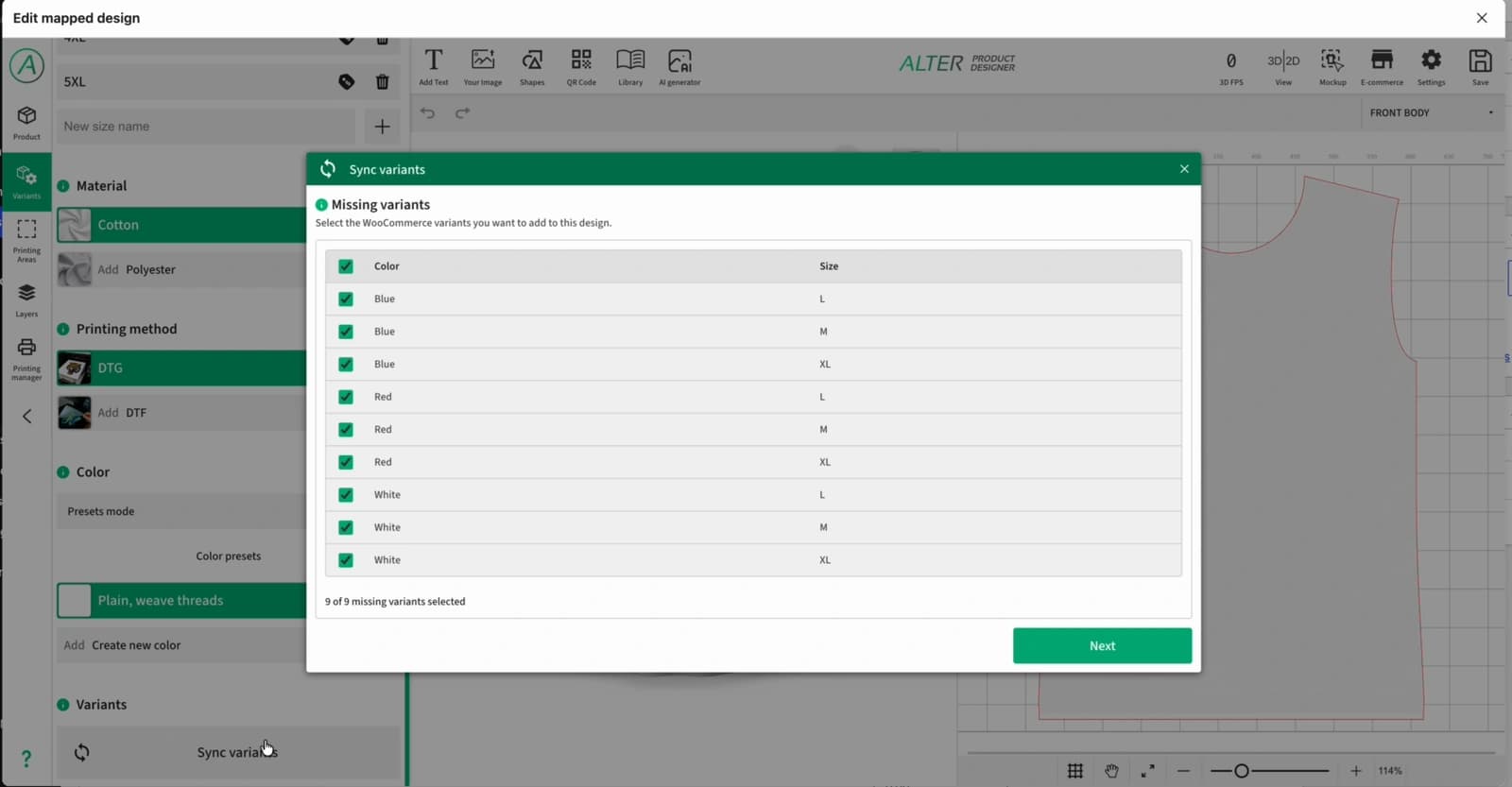
In the product's Alter Product settings, create a design using the downloaded model. Open the design in Designer, sync its variations with the WooCommerce variations and save. In Designer, also check the print areas where customers will be able to place artwork.
Generate mockups and publish
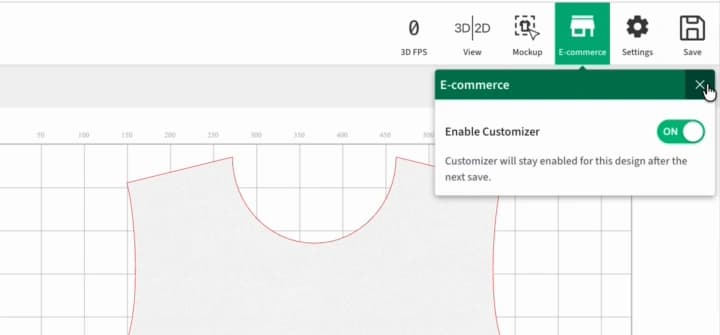
Prepare the mockup generators for the design and generate product images. Enable the Customizer if you want customers to add their own artwork or text, then save and publish the product.
Test the customer's view
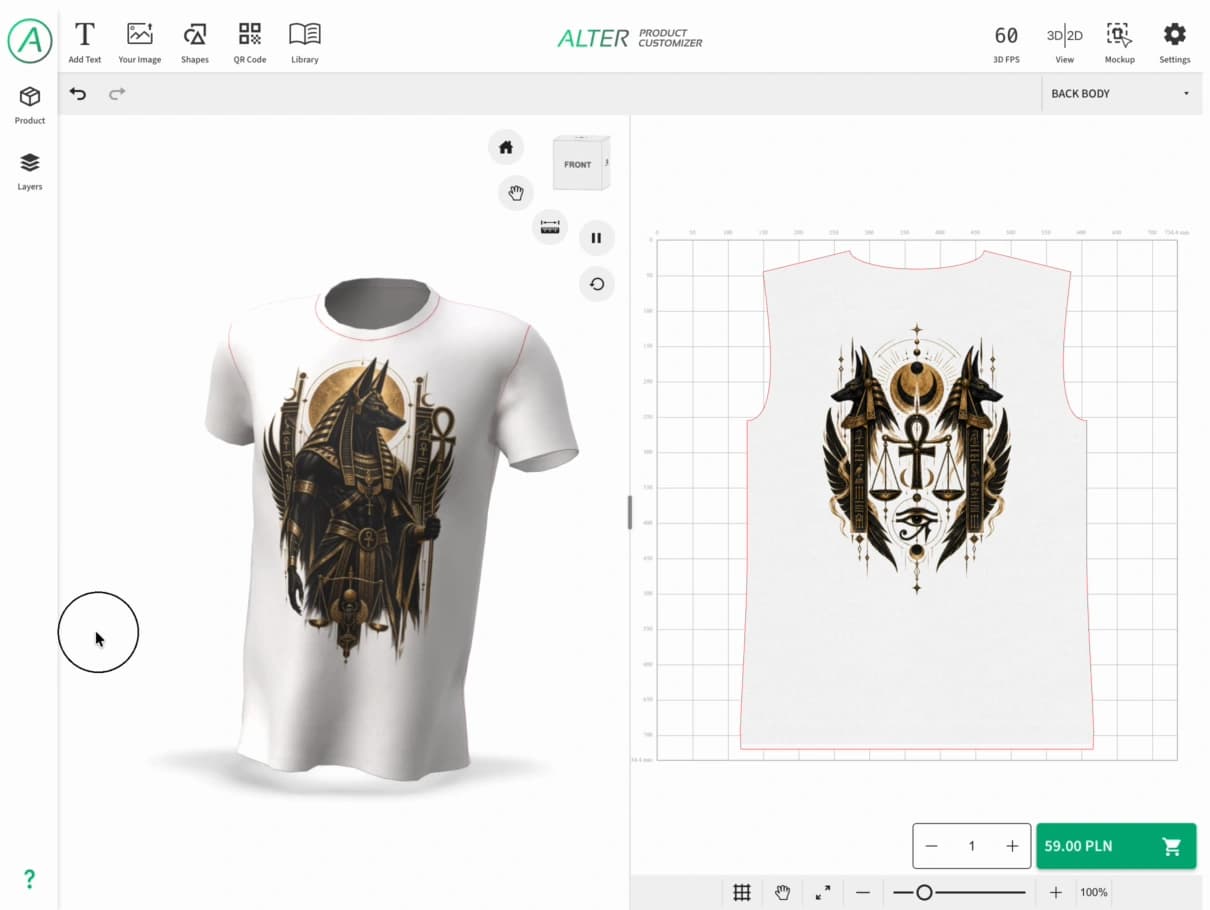
Open the published product page, choose a variation and check its color. The 3D Viewer lets customers see the product from every angle, including any artwork you have prepared. In the Customizer, they can add their own images and text within the print areas you configured.
Try adding the personalized product to the cart and check that its mockups appear. This gives you a first test of the customer's path through your store.
If something does not load
- A tool page shows Not found: open Settings → Permalinks in WordPress and click Save Changes.
- The account connection fails: return to Alter Product → Status and check the connection messages and server requirements.
- A color or size does not match: check the product variations and their mapping in the Alter Product design settings.
For configuration details, see the WordPress and WooCommerce integration documentation.