AI connected to your WordPress store
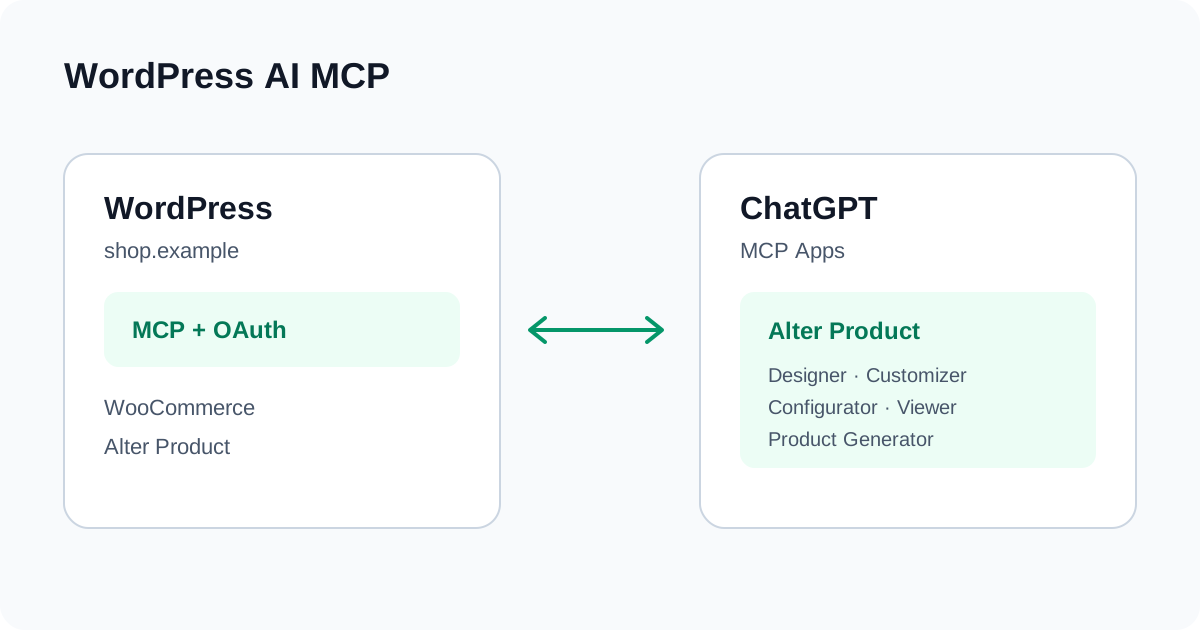
WordPress AI MCP
Use your store’s MCP connection to edit local Alter Product projects with AI. ChatGPT can show the editor beside the conversation; an authorized shop owner can also connect an editor already embedded on the store’s website.
Examples use the fictional store shop.example. Never put passwords, access tokens or pairing codes into screenshots or a public guide.
Before you begin
Prepare the store and an account with the permissions needed for the project.
WordPress + WooCommerce
Prepare the store and an account with the permissions needed for the project.
- WordPress 6.9+ with the native Abilities API, WooCommerce, the Alter Product plugin and the official WordPress MCP Adapter, including its dependencies.
- A publicly reachable HTTPS store and an authorized WordPress account. Your ChatGPT account or workspace must allow custom MCP connections; a local-only address is not accessible to a cloud client.
- A matching editor frontend with the WordPress MCP transport. Updating the PHP plugin alone does not update a separately hosted editor.
- A Business plan, a connected Alter Product API in the plugin settings, and the required assets downloaded to WordPress. MCP does not replace the store’s existing Alter Product integration.
- MCP settings require a WordPress administrator. Product authoring requires WooCommerce management and product-editing permissions, normally the Administrator or Shop Manager role.
Which files do I need?
Install the required plugins in WordPress. The manual ChatGPT connection uses your store’s server URL and OAuth.
- WordPress: install the current Alter Product plugin with MCP, OAuth and the visual editor, plus the separate official WordPress MCP Adapter and its dependencies. If using ZIP packages, upload them in WordPress, not in ChatGPT. OAuth is included in Alter Product; a separate OAuth plugin is not needed.
- ChatGPT: choose Add custom MCP server and enter the URL. This manual connection does not require a plugin ZIP, exported JSON, an access token or a client secret.
Connect WordPress to ChatGPT
Set up the store once, then authorize your own WordPress account in the AI client.
Enable MCP in WordPress
Open Alter Product → MCP authoring in the WordPress dashboard.
- Enable authenticated MCP authoring, browser-editor access and OAuth sign-in. Save the settings and check that the required WordPress components are available.
- Copy the OAuth MCP server URL displayed by the plugin. Use your own store’s address; the example below is fictional.
https://shop.example/wp-json/alter-wc/v1/mcp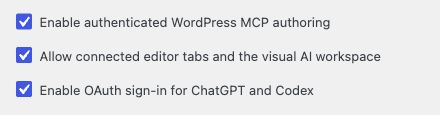
Work in the visible editor
Open Designer or Product Generator in a compatible ChatGPT client so you can see the result of each command.
Designer · Customizer · Configurator · Viewer · Product Generator
Open Designer or Product Generator in a compatible ChatGPT client so you can see the result of each command.
- Ask the connected tool to open Designer or Product Generator and choose the intended local project.
- Describe a small change, inspect the preview, then use Undo or Redo as needed. The editor must finish loading before browser commands can run.
- Use the editor’s Save action when you want to persist the draft to WordPress. Review the result before changing the store’s published product.
alter-product-app-catalog
alter-product-open-editor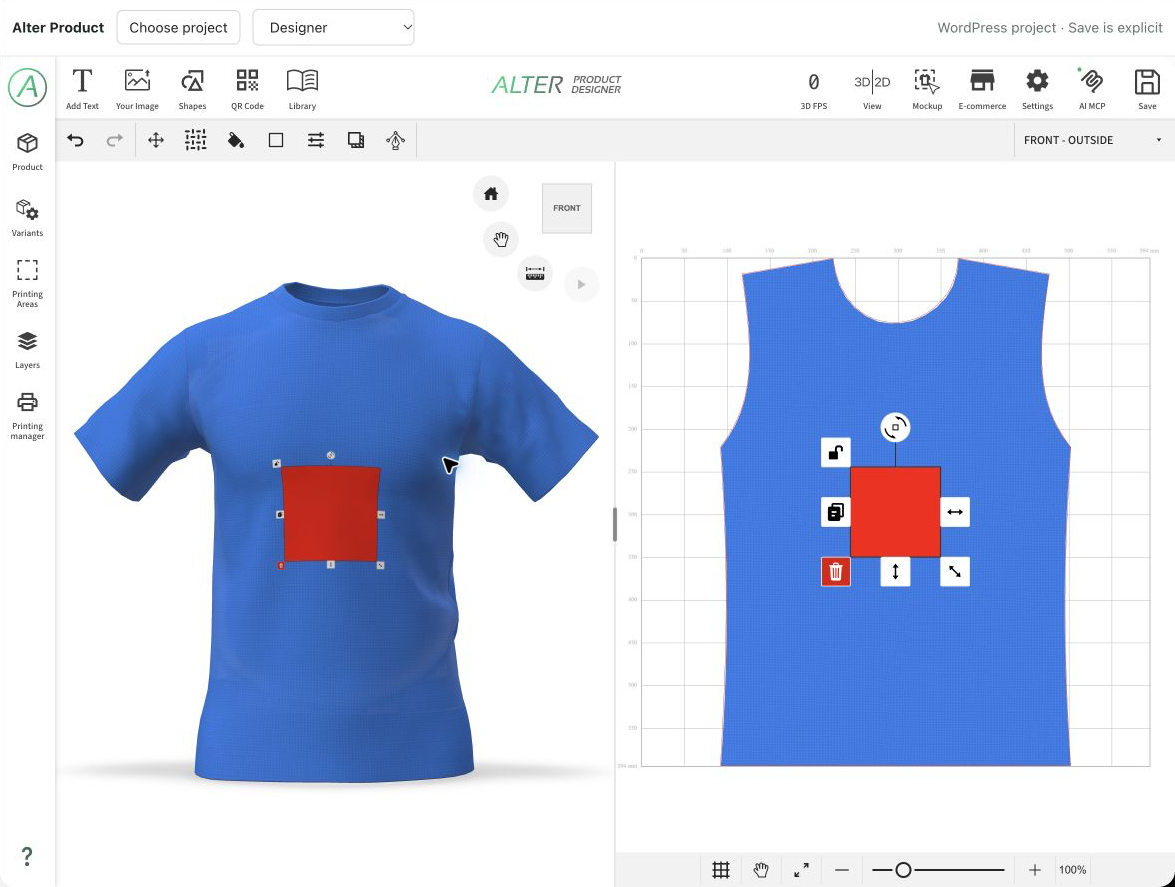
Use an editor on your own website
The shop owner can connect a supported embedded editor to the same WordPress MCP.
WordPress → AI MCP
For an owner workspace on your own website, enable MCP and browser-editor access. OAuth is additionally required for the inline ChatGPT connection; compatible local clients may use a WordPress Application Password instead.
- Sign in to the store’s WordPress with the account authorized in your AI client. On a locally embedded product, choose Edit with AI. Open generator with AI is also available when that design has a linked local generator project.
- The separate owner workspace connects automatically to the store’s WordPress MCP. For an existing administrator editor, open AI MCP and choose the plugin’s WordPress connection.
- In the conversation, list the connected editors and select the correct project and tab. Keep that editor open while AI works.
- Check changes in the embedded preview. Disconnect in AI MCP when finished; saving a project remains a separate action.
Where work and data stay
MCP commands are handled by your WordPress installation; editing and 3D calculations run in the connected browser.
WordPress + Alter Product
WordPress authenticates the user, checks permissions and passes bounded jobs and results between the AI client and the editor. It does not run the cloth simulation.
Saved local designs and generator documents use the plugin’s normal WordPress storage. The editor’s JavaScript, integration authorization, downloaded assets or optional external services can still follow the usual Alter Product configuration. This connection does not promise zero external traffic or offline operation.
Saving, permissions and revocation
OAuth grants the rights of the signed-in WordPress user, not a new administrator role. Browser edits support the editor’s Undo/Redo; server-side product changes have their own save and publishing rules. Revoke the AI client’s authorization to end its account access; disconnect the editor to end that live browser session.
If the connection or preview does not work
Check which part failed before repeating an editing command.
MCP · OAuth · MCP Apps
Check which part failed before repeating an editing command.
- For a cloud client, use a public HTTPS URL. For a local test, an explicitly configured temporary HTTPS tunnel is needed; localhost is not the server URL for ChatGPT.
- If no tools appear, verify MCP, OAuth, the native Abilities API and the official MCP Adapter. Check the exact server URL and the WordPress user’s capabilities.
- If tools work but the editor is absent, check MCP Apps support, the frontend version and the frame restrictions of the client. A WordPress wrapper does not remove the host’s embedding policy.
- If the browser session is unavailable, reopen the intended owner editor, connect AI MCP and select that session again. Read the current project state before retrying a write whose result is uncertain.